Pillar guide 10 min read
How to Tell If Your Dental Website Is Doing Its Job
By Platte Gruber, founder of root.
Most dental websites get judged on how they look. Someone opens the homepage on a big monitor, the photo is nice, the colors match the sign out front, and that’s the review.
Patients don’t open your website that way. They open it on a phone, usually with a question, and often at a time when nobody at the practice is around to answer it. The useful test of a dental website is whether that person can find the answer and take the next step.
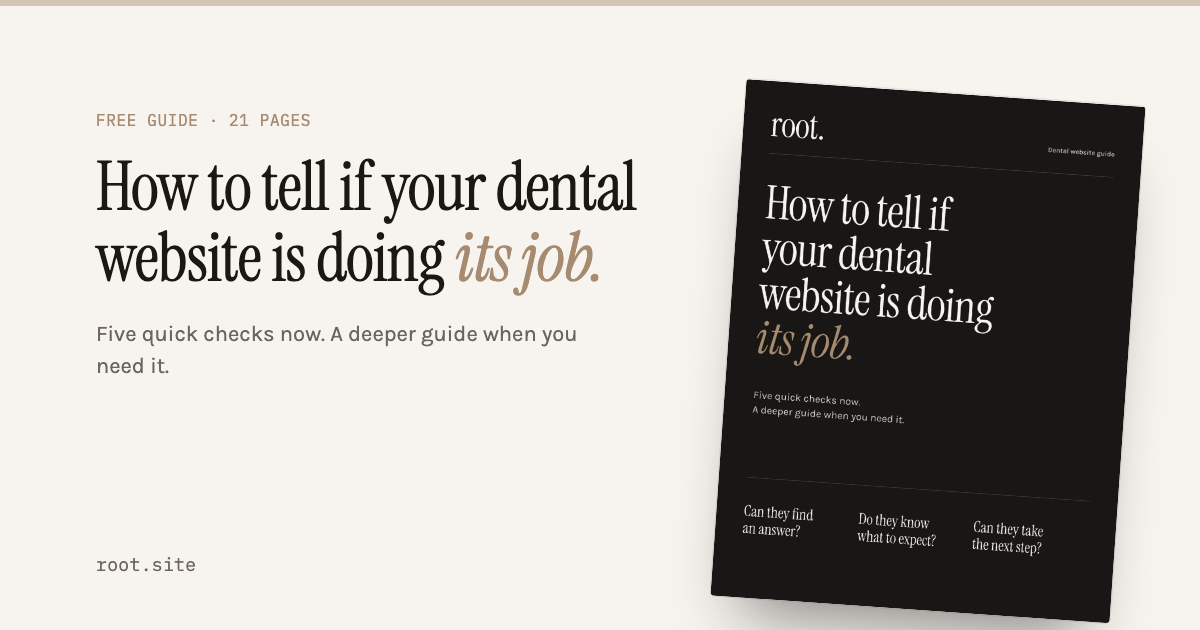
I run that test on every site I build or review. Over the past few weeks I wrote it down as a 21-page guide, with the ten-minute version on page 2, a worked example on a real site, and a worksheet at the end. This post is the thinking behind it. The guide itself is free; put your email in the box and it lands in your inbox as a PDF.
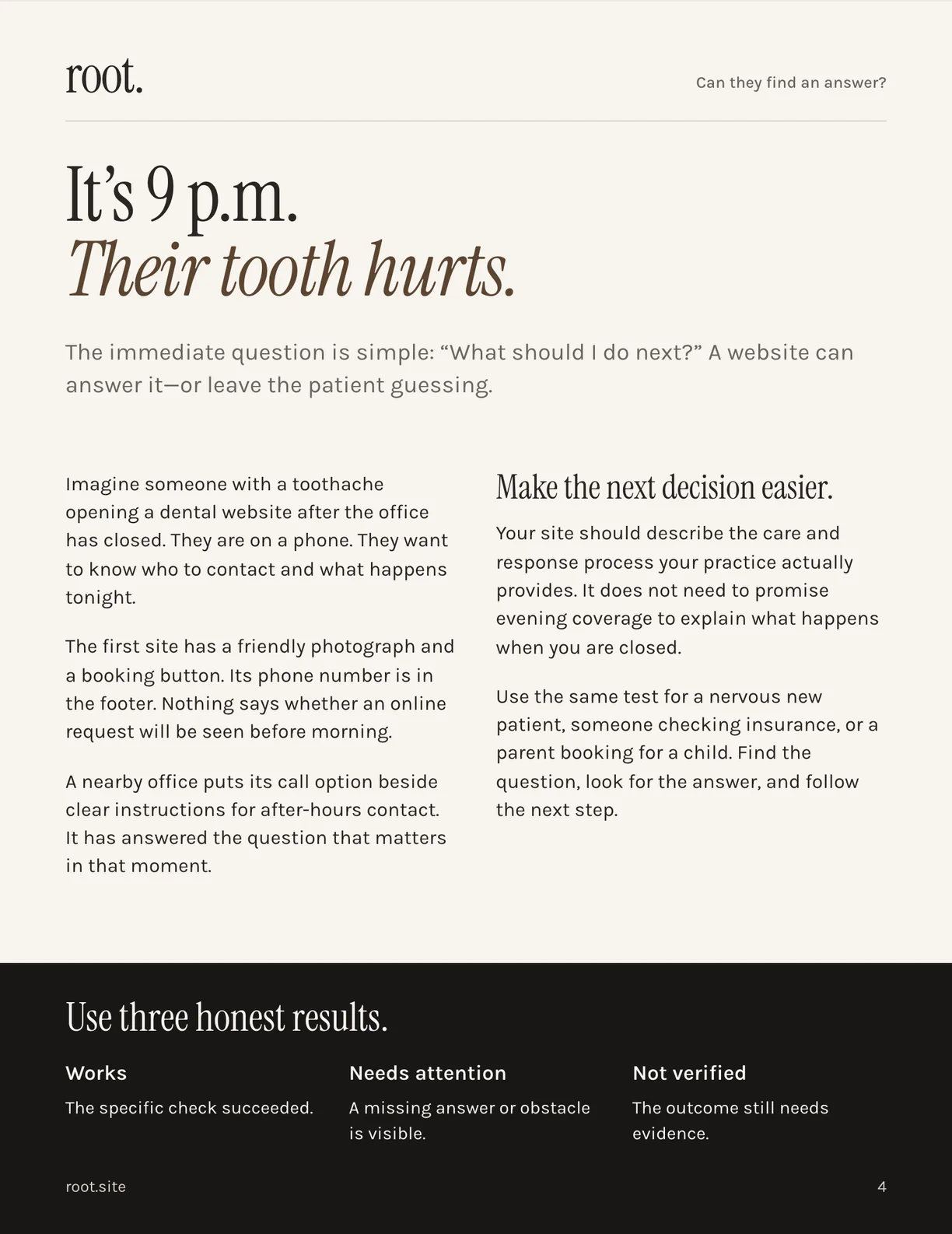
It’s 9 p.m. and their tooth hurts
Here is the patient I start with, because they make the whole question concrete.
It’s evening. The office closed hours ago. Someone’s tooth has gone from annoying to properly painful, and they’re on their phone looking for a dentist. Their question is simple: what should I do next?
The first site they open has a friendly photograph and a booking button. The phone number is in the footer, four screens down. Nothing on the site says whether an online request will be seen before morning. They fill in the form anyway, or they don’t, and either way they spend the night not knowing.
A site a few miles away puts its call option beside a short, honest paragraph about what happens after hours: leave a message, it’s checked first thing, someone rings back before the first appointment, and for anything that can’t wait, here’s where to go. That site answered the question that mattered in that moment. It didn’t promise evening coverage. It just said what’s true.
Every check in the guide works like this. Pick a patient. Find their question. Look for the answer on your own site. Follow the next step and see whether it works. Nervous new patient, parent booking for a child, someone checking whether you take their plan: same test, different question.
The ten-minute version
If you only do one thing after reading this, do this. Open your website on your phone and try these five checks. You’re looking for one useful thing to improve, not a score.
Can someone call you? Tap the number from the homepage, then from a service page. Good looks like your phone’s dialer opening with the correct office number. If calling needs a scroll, or the number is an image, the first fix is a working call link in the mobile header.
What happens when you’re closed? Find the emergency or contact information. Good looks like a plain explanation of the real after-hours process and who to contact. If there’s nothing, or there’s a vague “we’re here for you,” publish the actual instructions beside the call option.
Can someone schedule a visit? Follow the booking button and stop before you submit. Good looks like it opening the right practice and telling the patient whether they’re requesting a time or booking one. If the destination is wrong, or the label promises more than the form delivers, fix the destination and make the words match the process.
Can a new patient prepare? Find the team and first-visit information. Good looks like real names and photos, how to arrive, and what the first visit usually involves. If it’s thin, add the answers your front desk gives most often.
Can someone ask about cost? Find the insurance and payment information. Good looks like your actual policy and a way to ask about a specific plan. If it’s “we work with most insurance,” replace it with the policy your team uses on the phone.
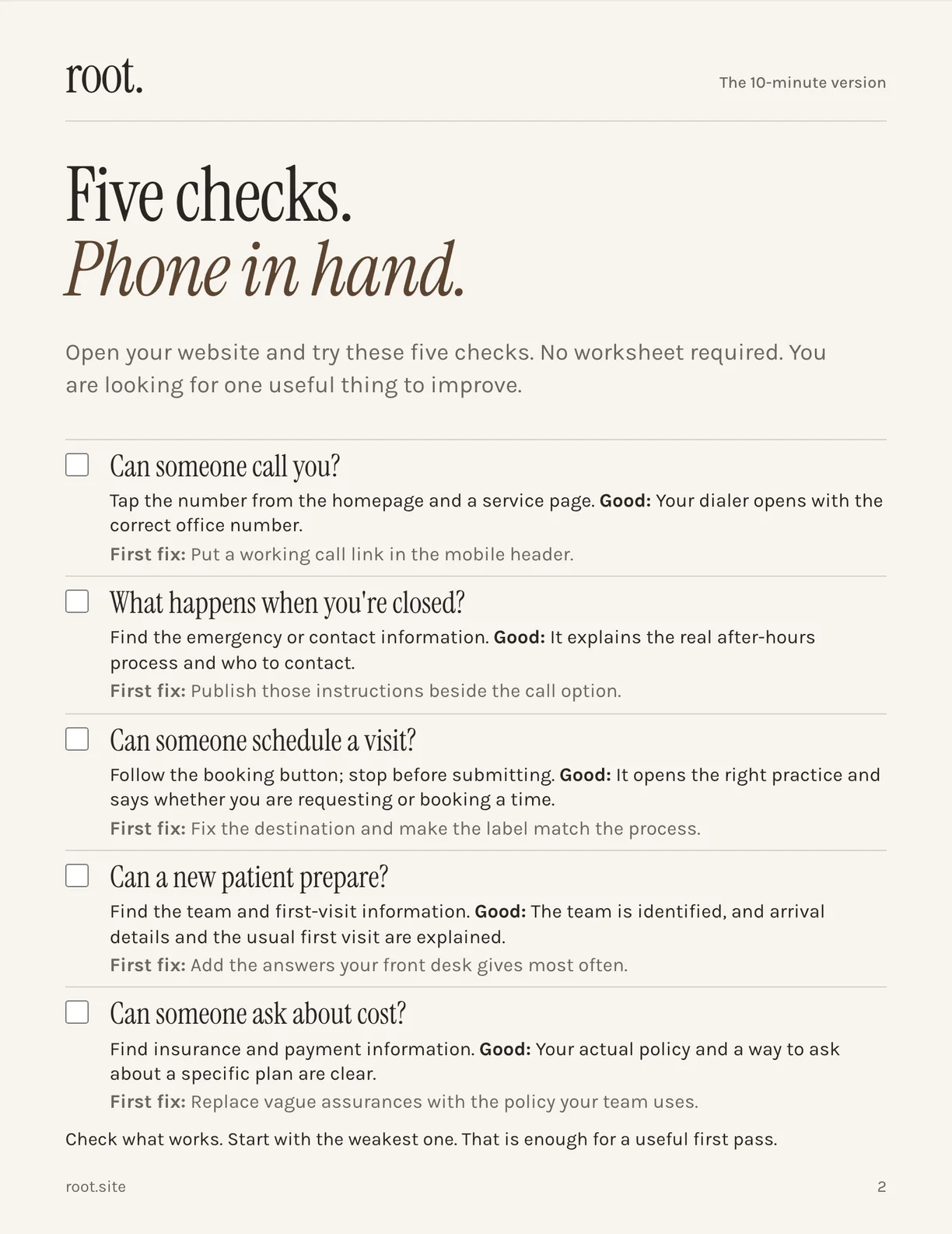
Check what works. Start with the weakest one. That is enough for a useful first pass, and it’s more than most practices have ever done with their site.
Three honest results, and no score
The guide uses three results, and I’d encourage you to use the same ones even in your head.
Works. The specific check succeeded. The dialer opened with the right number. The form reached the office.
Needs attention. A missing answer or an obstacle is visible. You looked for after-hours instructions and there weren’t any.
Not verified. The outcome still needs evidence. You followed the booking button and stopped before submitting, so you know the form exists but not whether anyone receives it.
There’s no score out of 100 because a score hides the thing you need to know. A site can be beautiful, fast and accessible and still leave someone in pain with no idea what to do tonight. Three results, applied to specific checks, tell you what to fix. A number tells you how to feel.
What this looks like on a real site
I’d rather show the method than describe it, so the guide runs it on Stillwater, the fictional practice I use to demonstrate my own work. That’s deliberate. It’s easy to find fault with a stranger’s site; the honest version of this exercise is finding it on your own.
Here’s the task: “I need to contact a dentist tonight.” I opened the homepage at two phone sizes, 360×800 and 390×844, and looked for a way to call.
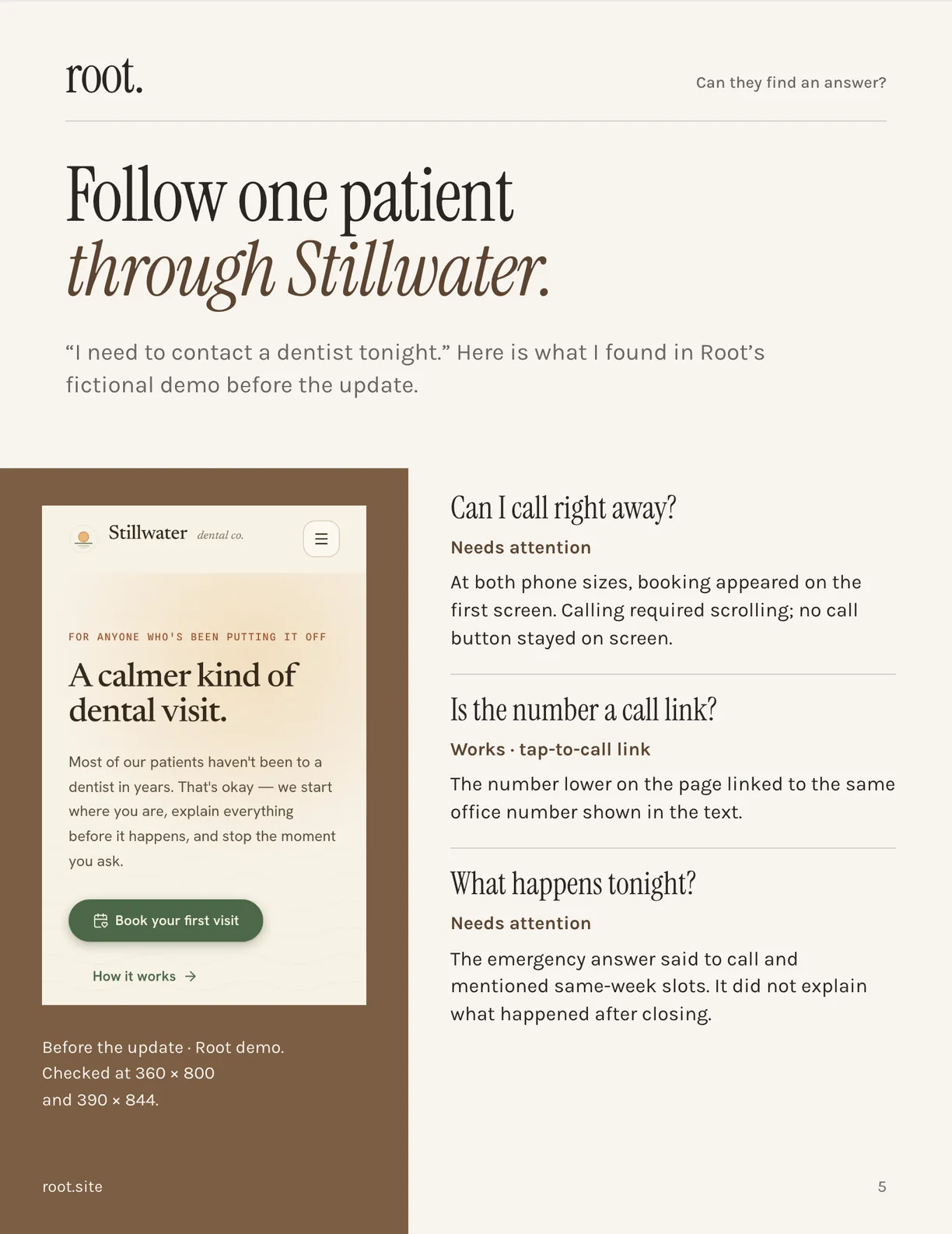
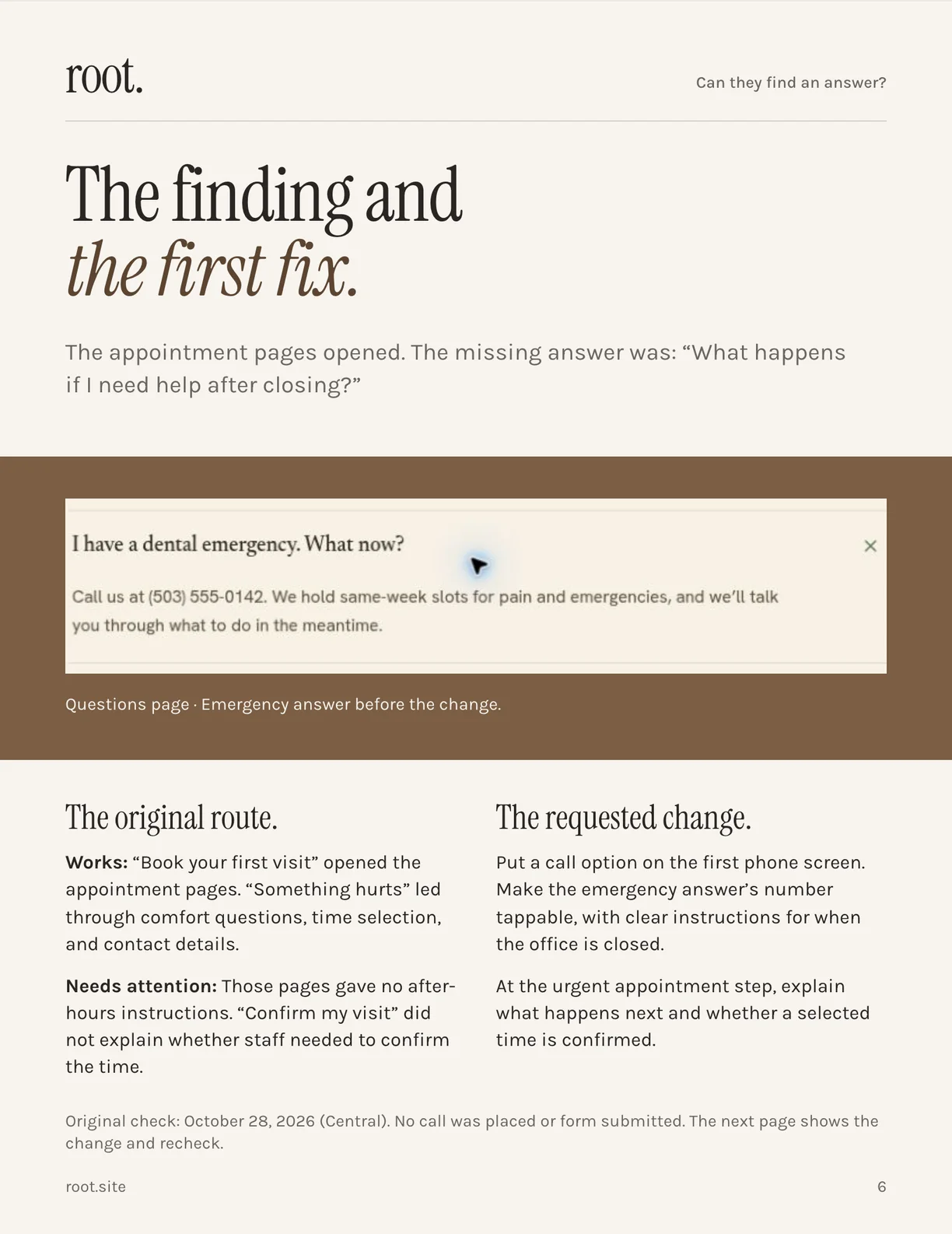
Two of the three checks needed attention. At both phone sizes the booking button was on the first screen but calling required scrolling, and no call option stayed visible. The number lower on the page was a real tap-to-call link, which is the one thing that worked. And the emergency answer on the questions page told patients to call and mentioned same-week slots, but said nothing about what happens after closing.
The booking path had the same gap. “Something hurts” led through the comfort questions, a time picker and a contact form, and then a button that said “Confirm my visit” without saying whether the time was actually confirmed or whether staff had to approve it.
So the requested change was small and specific: put a call option on the first phone screen, make the emergency answer’s number tappable with clear instructions for when the office is closed, and at the urgent booking step explain whether a selected time is confirmed.
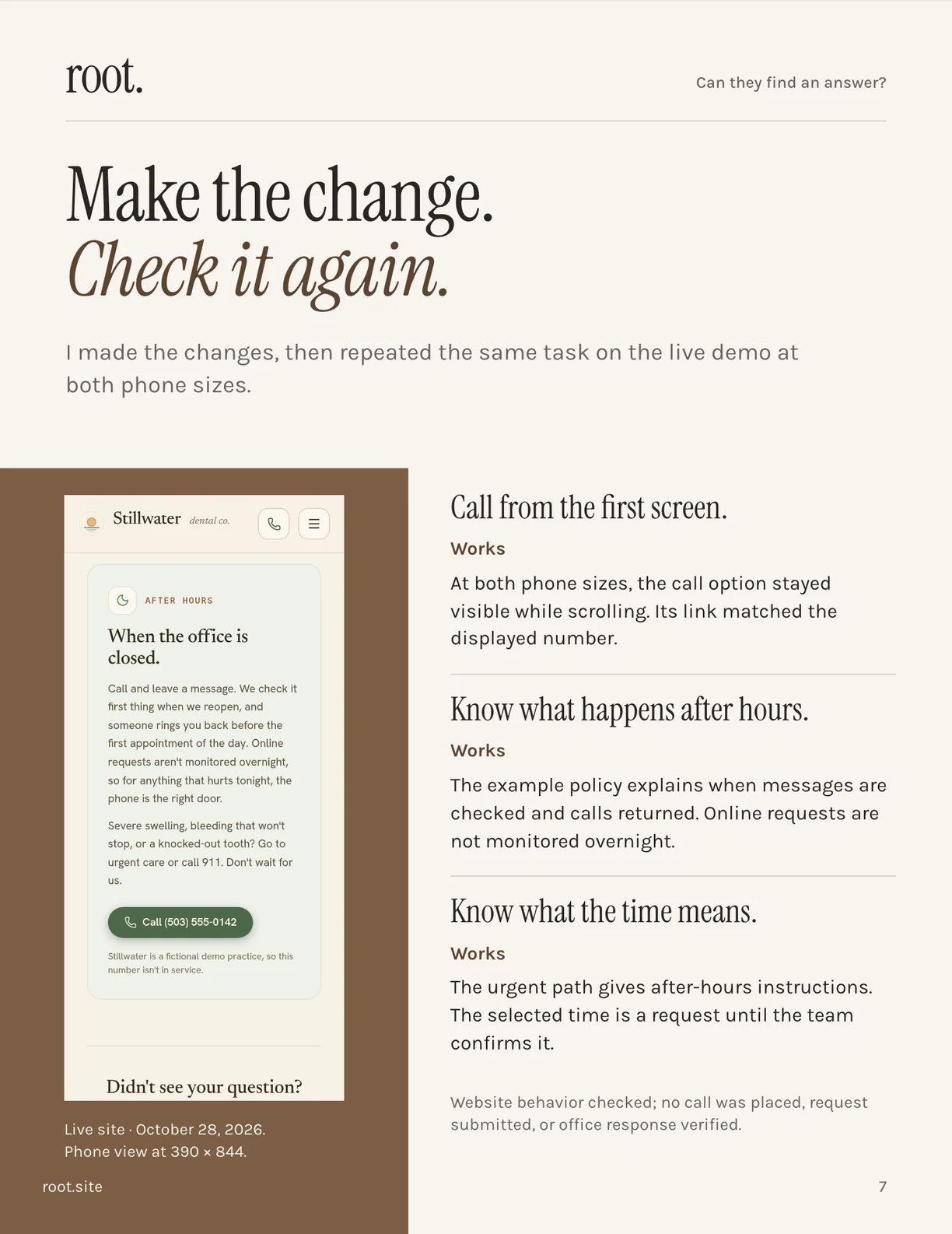
Then I made the change and repeated the same task on the live demo at both phone sizes. The call option stayed visible while scrolling and its link matched the displayed number. The after-hours card explains when messages are checked and that online requests aren’t monitored overnight. The urgent path says the selected time is a request until the team confirms it by text.
Two things worth noticing. First, the fix took an evening, not a redesign. Second, the recheck is part of the work. A change nobody re-tested is a guess.
Do they know what to expect?
The second question in the guide is about expectations, and the biggest one is the difference between a request and a reserved time.
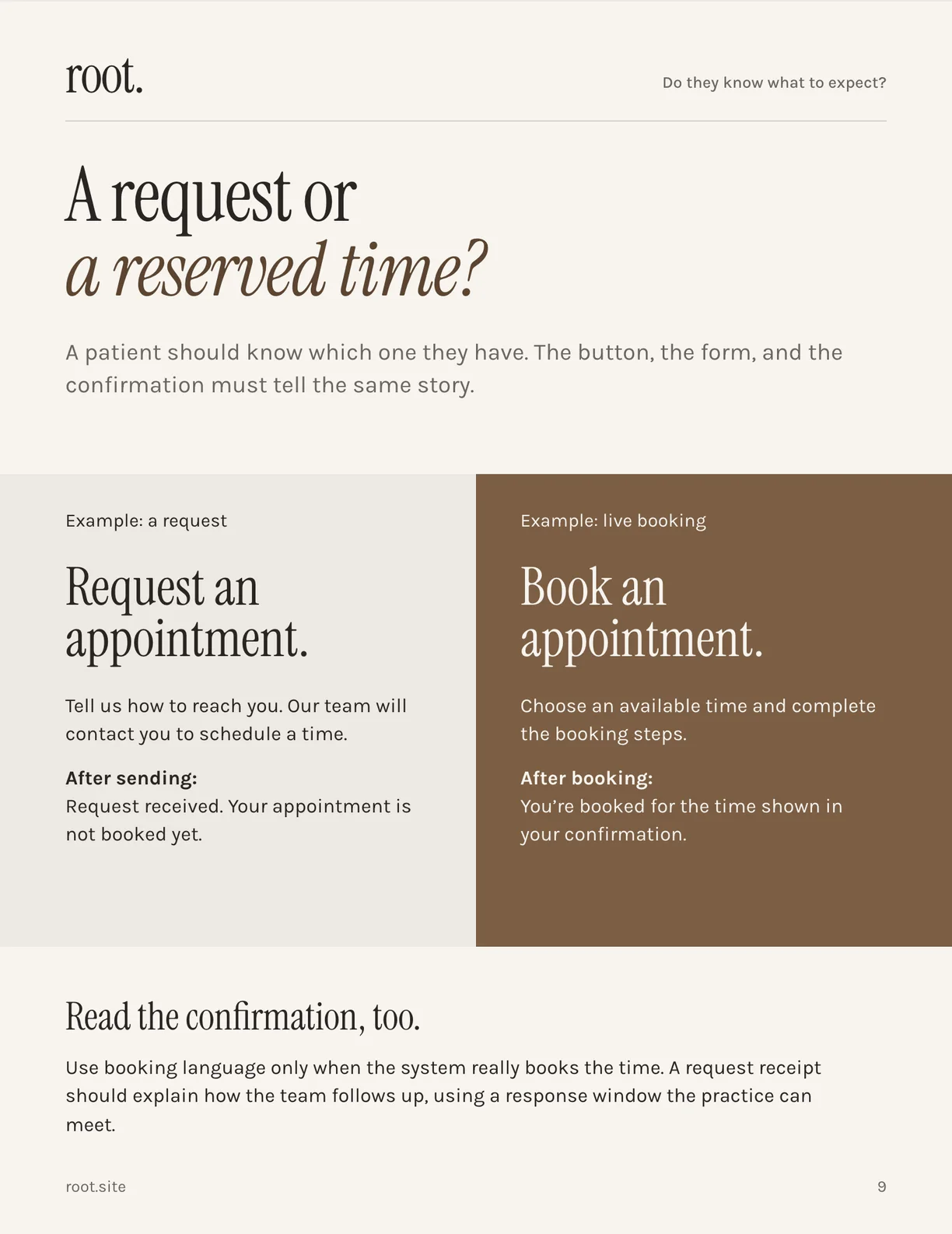
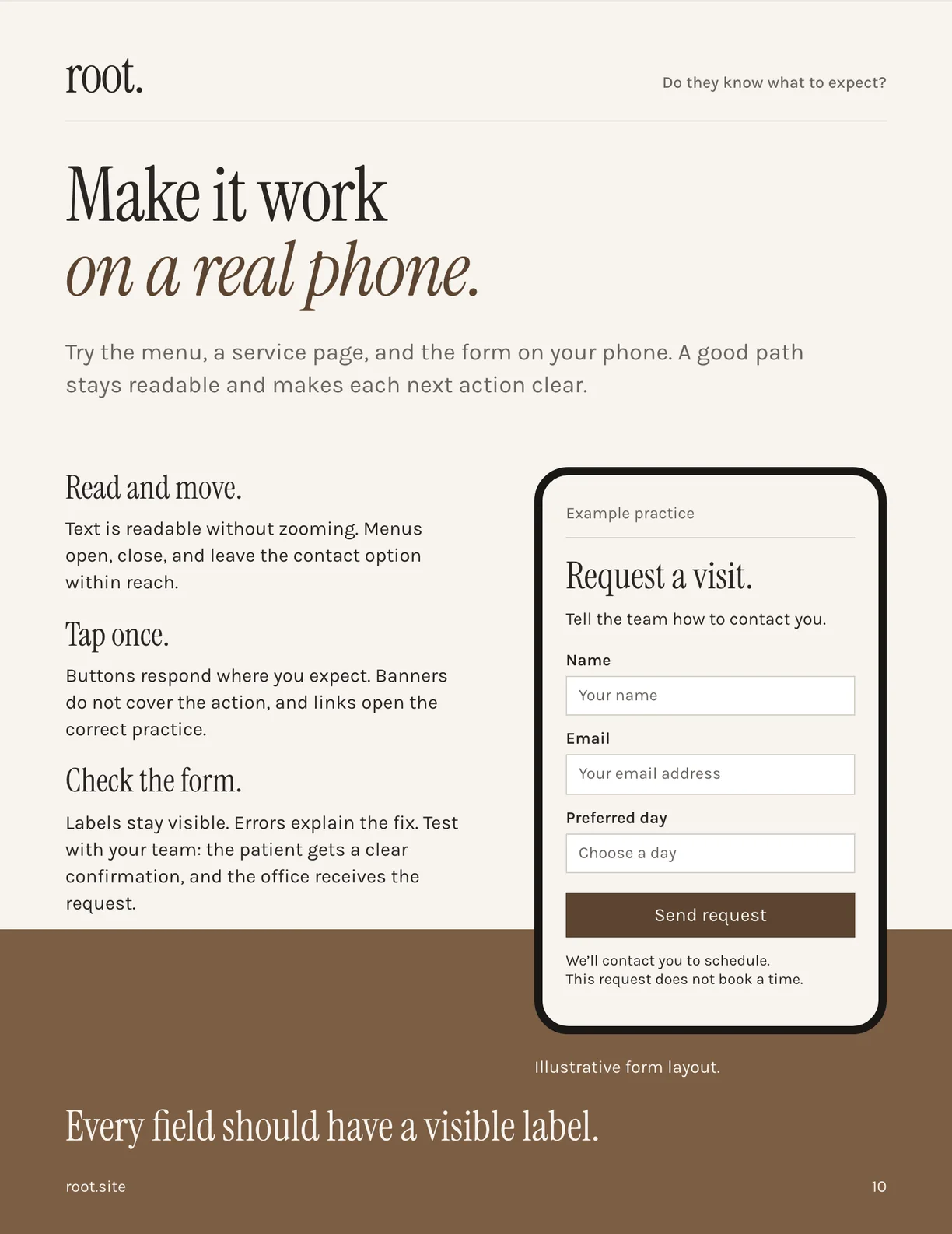
If your booking system actually books, say “Book an appointment,” and the confirmation should say the patient is booked for the time shown. If a person has to confirm it, say “Request an appointment,” and after sending, say so again: request received, your appointment is not booked yet, here’s how we follow up and how quickly. The button, the form and the confirmation have to tell the same story. When they don’t, the patient thinks they have a Tuesday slot and your front desk finds out on Wednesday.
The rest of the section is the things a new patient needs to picture before they’ll contact you. Service pages that explain one thing in plain words and end with a next step, reviewed by the dentist so the claims match what can be said before an exam. A team page with current names, roles and real photographs, and the biographies of people who left removed. Arrival details that go past a map pin: the suite, the entrance, where to park. And insurance and payment written the way your front desk says it, because “we work with insurance” answers nothing. Network status, estimates and payment options are three different questions, and the page should answer all three.
If you want to go deeper on that last one, I’ve written separately about what belongs on a new patient page.
Can they take the next step?
The third question is where most website reviews stop short. A click isn’t the whole journey. The patient needs to know what happened. The office needs to receive the request. And whoever maintains the site should be able to show that both were checked.
This is the part of the guide written for the conversation with your website provider, and it’s built around questions whose answers you can evaluate without being technical.
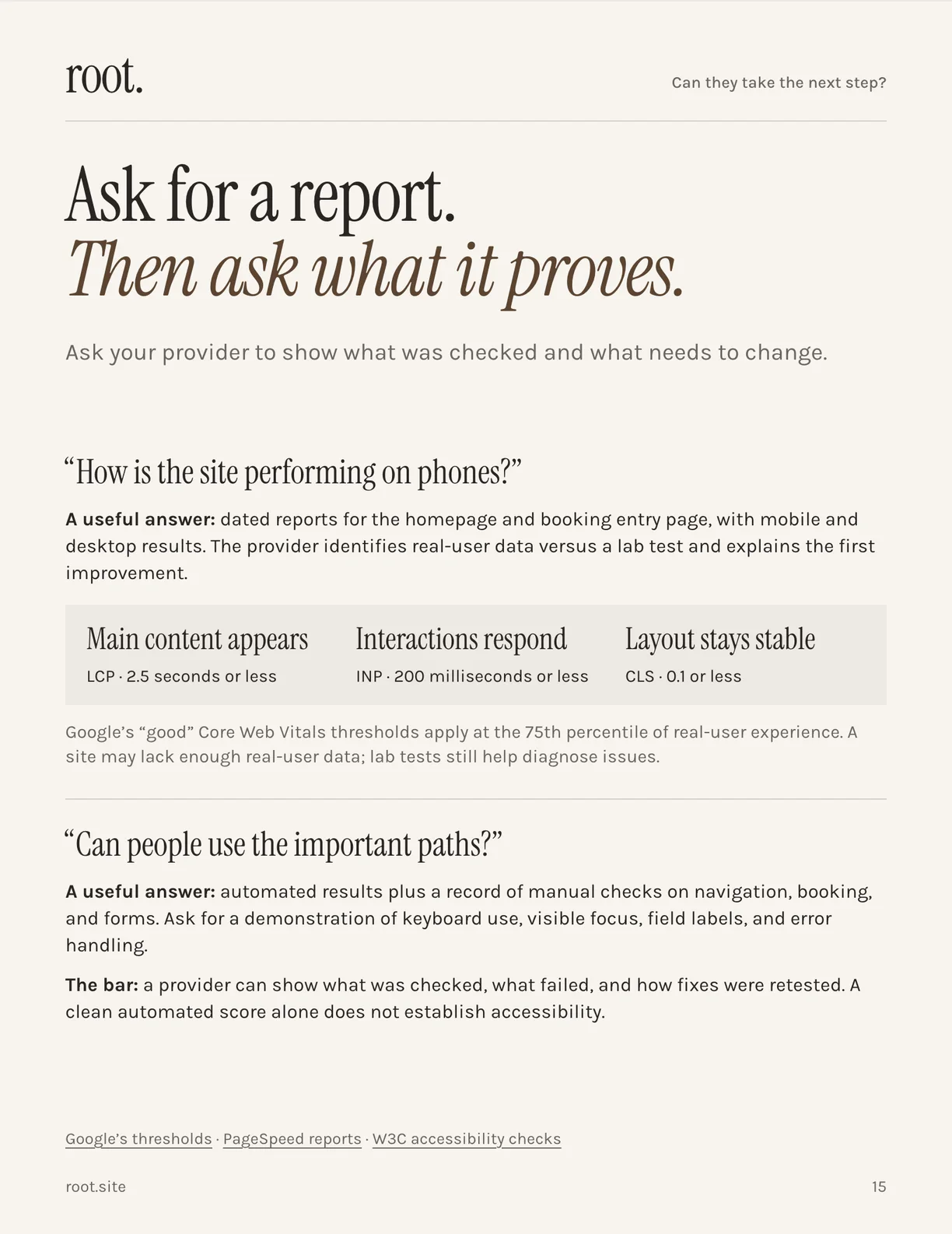
“How is the site performing on phones?” A useful answer is dated reports for the homepage and the booking entry page, on mobile and desktop, that say which numbers are real-user data and which are lab tests, and name the first improvement. Google’s thresholds for a good experience are public: main content in 2.5 seconds or less, interactions responding in 200 milliseconds, and a layout that doesn’t jump. If your provider can’t show you those numbers, that’s an answer too. (I’ve written about why dental websites end up slow if you want the background.)
“Can people use the important paths?” A useful answer is automated results plus a record of someone actually trying the navigation, the booking flow and the forms with a keyboard, and checking labels and error messages. A clean automated score alone doesn’t establish that a site is accessible.
“Do our appointment requests arrive?” The best evidence is a dated test: what the patient saw, where the office received it, and who owns the follow-up. Repeat it after any form change.
“What does the practice own?” A written list of the domain, the website source, the content, the hosting and the business accounts, with owners and the transfer process. Walk through it with the provider and confirm any access that’s missing. This one matters more than it sounds; I’ve seen enough practices discover they don’t own their own site that I wrote a whole post about it.
“How would we recover the site?” What’s backed up, who restores it, and the date and result of the last time anyone tried.
Choose the first fix
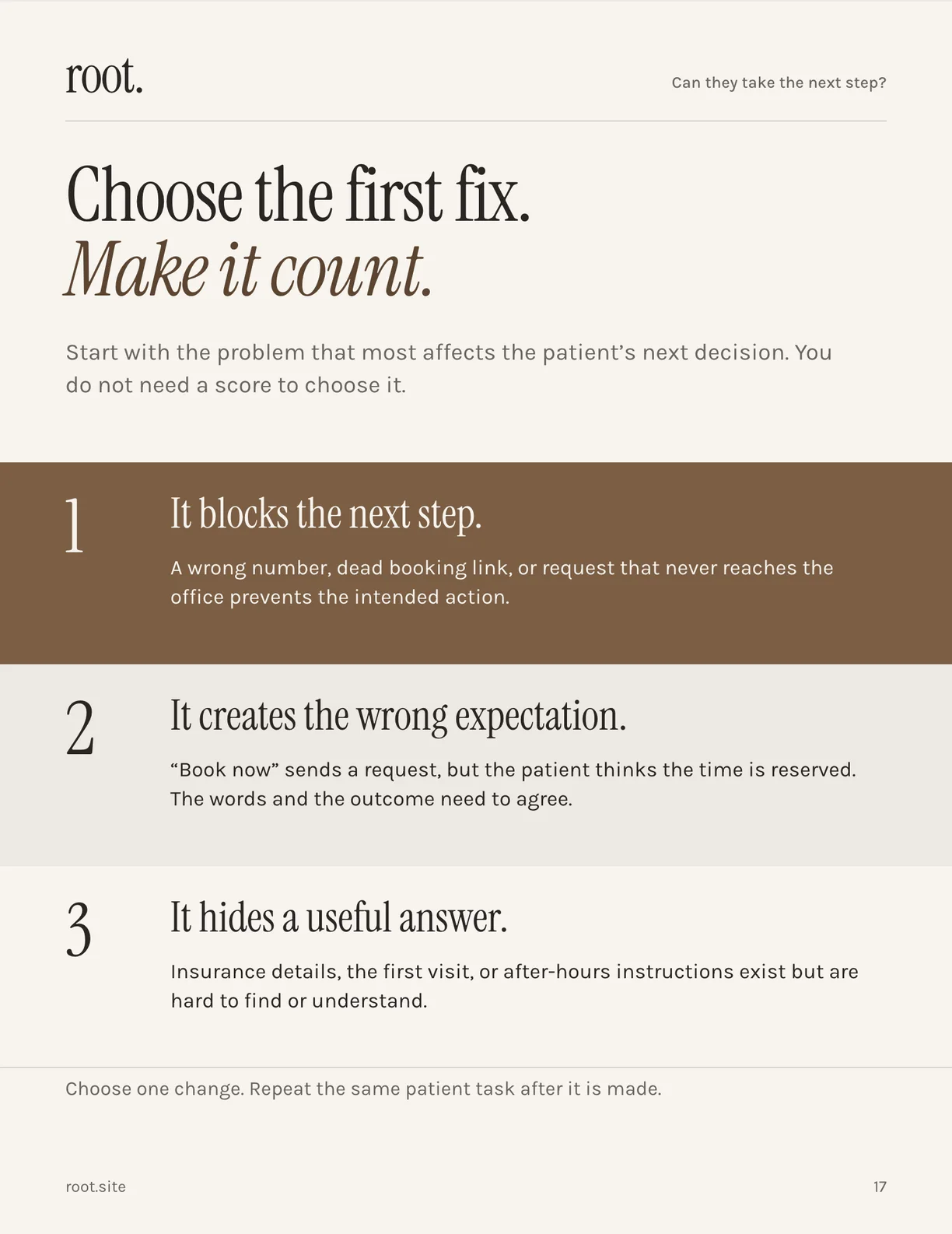
You’ll find more than one problem. Everybody does. The guide’s rule for choosing is to start with whatever most affects the patient’s next decision, in this order.
- It blocks the next step. A wrong number, a dead booking link, a request that never reaches the office. Nothing else matters until this is fixed.
- It creates the wrong expectation. “Book now” sends a request, but the patient thinks the time is reserved. The words and the outcome need to agree.
- It hides a useful answer. Insurance details, the first visit or after-hours instructions exist but are hard to find or hard to understand.
Choose one. Make the change. Repeat the same patient task after it’s made. Then, and only then, pick the next one.
The worksheet
The last pages of the guide are a worksheet, and a filled-in copy showing the Stillwater call-link finding in the same fields: the page address, the date and device, the patient’s question, what I tried, what happened, what should happen, the evidence, who’s responsible, and the result after checking again.
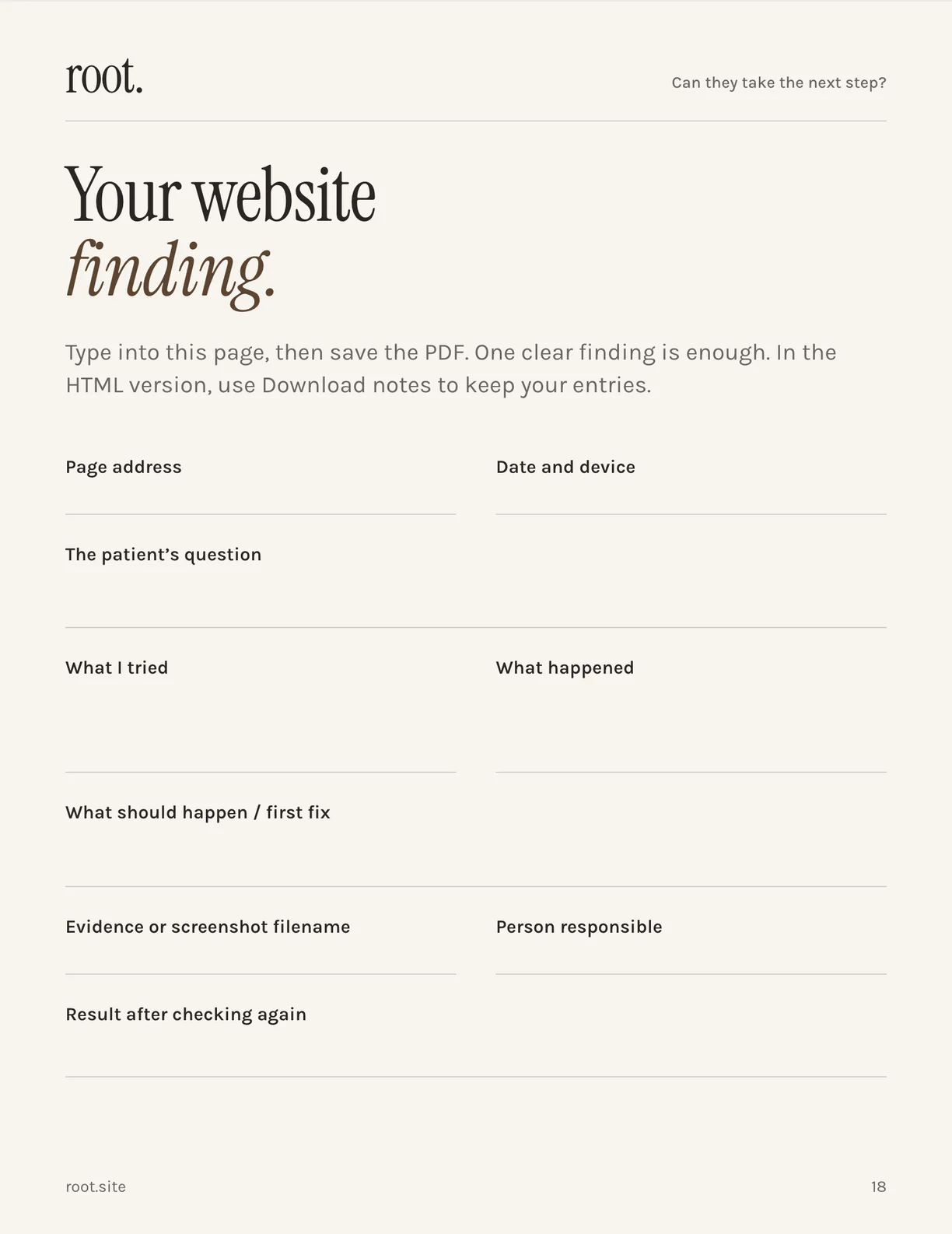
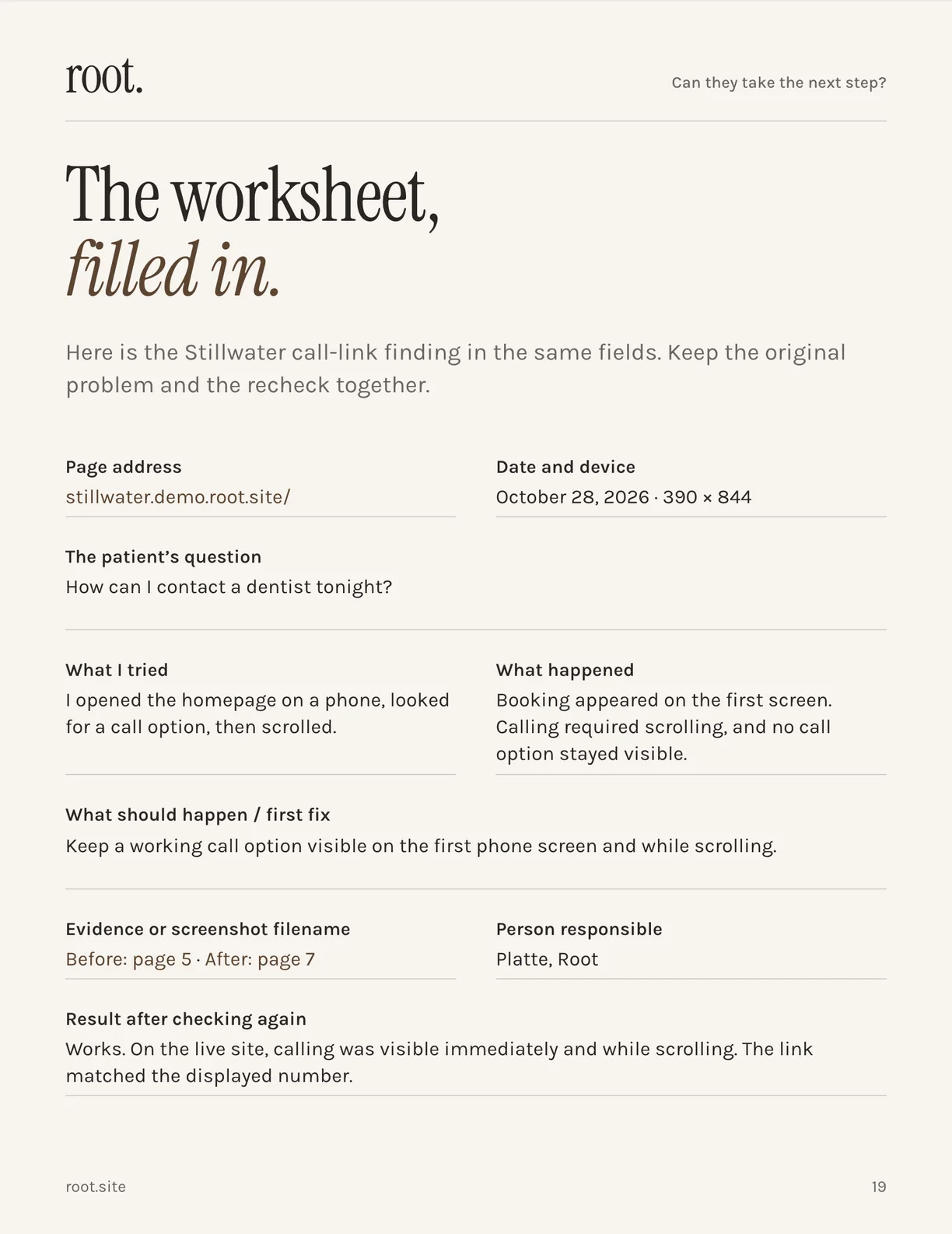
One clear finding, written down like this, is more useful than a forty-item audit. You can hand it to your current provider and they’ll know exactly what to do. You can hand it to a new one and they’ll know exactly what the old site got wrong. And in a month you can open it and check whether the fix held.
Get the guide
That’s the method. The guide has all of it in one printable file: the five checks, the three questions, the worked example, the provider questions and the worksheet. It’s free. Tell me where to send it.
If you’d rather have a second pair of eyes, reply to the email that arrives with your website address. I’ll go through the public patient journey myself and send you three findings with screenshots within two business days: what’s working, what’s getting in the way, and what I’d change first. No charge, no obligation. Use it with your current provider, or talk to me about taking care of the website.
Questions
How do I know if my dental website is working? Pick one patient with one question, open your site on your phone, and try to do what they would do. Tap the number. Find what happens after hours. Follow the booking button and stop before submitting. Find the first-visit and insurance information. If each one ends in a specific answer and a working next step, the site is doing its job. If any one stalls, that’s your first fix.
What should be on the first screen of a dental website on a phone? A working call link and a working way to book, both visible before any scrolling, plus enough words to confirm the patient is at the right practice. Everything else, including the photography, can come after.
Should the booking button say “Book” or “Request”? Whichever is true. If the system reserves a time the moment the patient submits, “Book” is right. If a person has to confirm it, say “Request” on the button, repeat it on the confirmation, and give a response window the office can actually meet.
How do I pick which website problem to fix first? Whatever most affects the patient’s next decision. First, anything that blocks the step entirely. Second, anything that creates the wrong expectation. Third, a useful answer that exists but is hard to find. Fix one, then repeat the same patient task to confirm it.
Is the guide really free? Yes. There’s no list and no follow-up sequence; the PDF arrives with a short note and that’s it. The one thing I’ll offer in that note is the free three-finding review above, and only if you reply.